 Expense IQ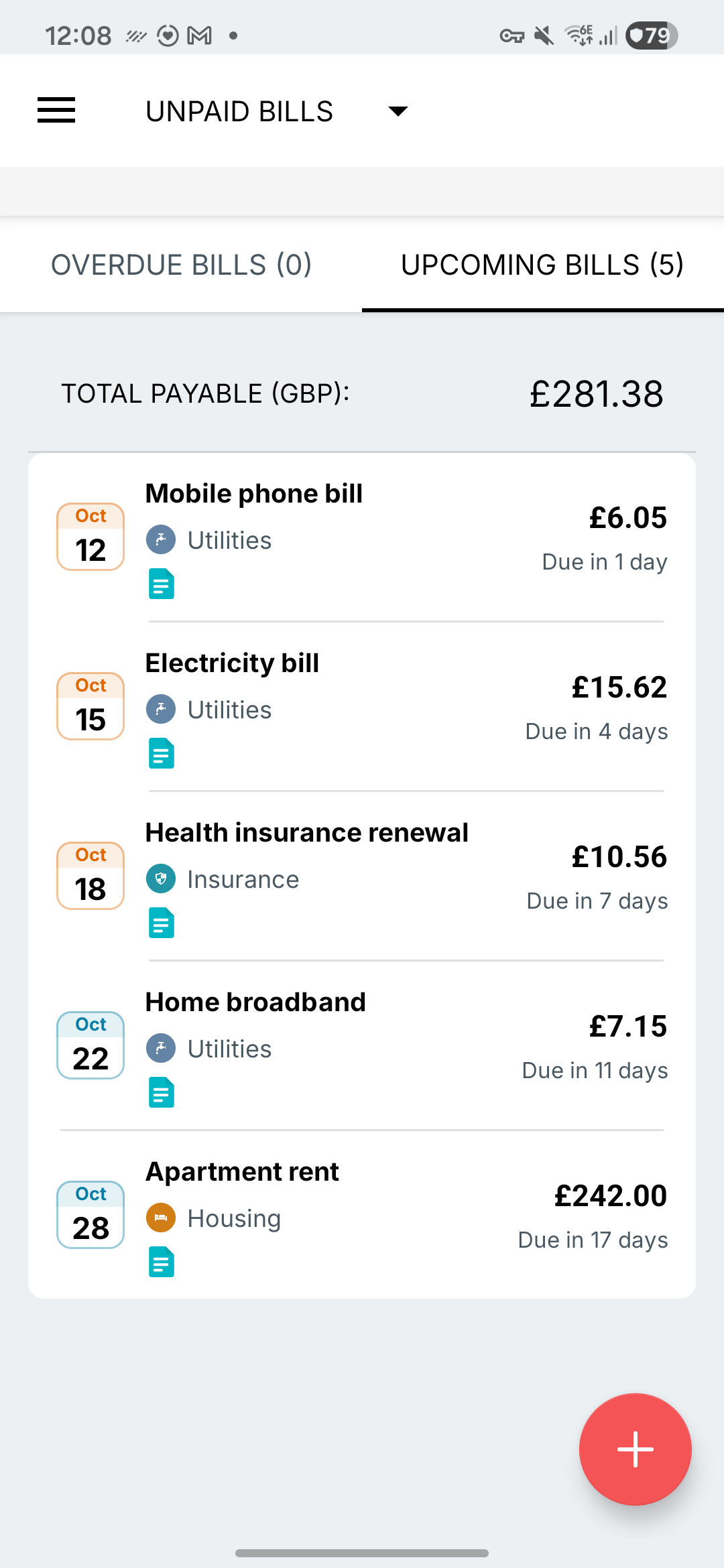
Add the next real due date
- Open Bill Reminders and add a reminder.
- Enter the payee or description, amount, account, category and next due date.
- Enable repeating and choose the interval that matches the bill.
- Choose the notification lead time and save.
- Review the next occurrence in the bill list.
Start with the next bill you expect to pay. A monthly bill and a bill every four weeks follow different schedules, so choose the interval carefully.
Review variable amounts
Electricity and card statements can change each month. Treat an existing reminder amount as something to check against the new bill. Update the amount and date when needed before recording the payment.
A reminder is a plan to act, not proof that money has left the account. Use the payment controls after you have paid, then check the transaction and upcoming occurrence.
Keep your reminders up to date
Review upcoming and overdue bills regularly. If a subscription ends, update its reminder so it does not keep appearing as money you expect to pay. If you have already recorded a payment elsewhere, check that record before using an action that may create another transaction.
If a notification does not arrive, check both the reminder’s notification setting and Android notification permissions. You can still open the bill list to inspect the due dates.